The Users menu shows an overview of everyone with a Checkd account at your venue, including their full name, email, phone number, and user role.
- Only users with a Manager role in Checkd can create and manage other users.
- Personal details such as name or phone number can only be updated by the account owner via the My Profile menu.
🔊 Volume up
Adding a User
- Select Users from the menu panel on the left.
- Select Invite in the bottom-right corner of the screen.
- Enter the email address of the user you want to add.
- Select their role (Manager or Staff) to determine the level of access and permissions they will have in Checkd.
- Select Send invite.
Invitations are valid for 7 days. If the user does not sign in within this time, a new invitation link can be sent from their profile.
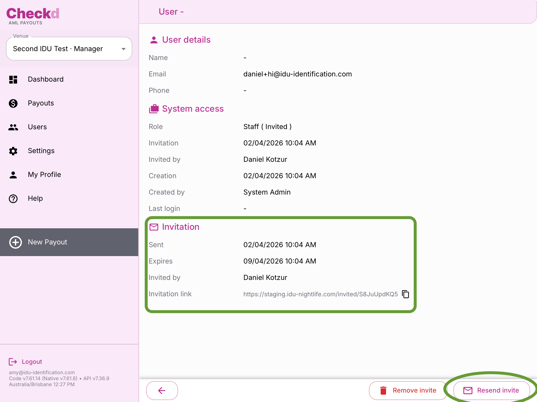
The new user will receive an email with a link to accept the invitation and set up their access to Checkd.
Users can only have one role per venue at a time. The Role column in Checkd displays each user’s assigned role, including any pending invites.
For more information on user roles and the access and permissions of each role, see User Roles.
Access to Multiple Venues
Users who already have a Checkd account at one venue can be invited to additional venues using the same email address. This is particularly useful for staff and managers who work at or oversee multiple venues.
Note that the user must be invited separately by each venue.
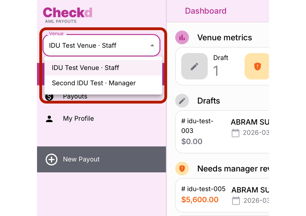
Using the same email address enables the user to switch between venues by selecting the dropdown in the top-left corner of the dashboard.
Changing User Access and Permissions
The role a user has in Checkd (Manager or Staff) determines the level of access and permissions a user has. To change this for a user, follow the steps below.
- Navigate to the Users menu.
- Select the user from the list whose role you want to change, and then select Edit in the bottom-right corner of the screen.
- Adjust their role as needed, and select Save.
Removing a User
To remove a user from your venue in Checkd, follow the steps below:
- Navigate to the Users menu.
- Select the user from the list whose account you want to remove.
- Select Remove and confirm your action.
Note that this action is permanent and cannot be undone.
My Profile
The My Profile menu is where you can manage your personal details, such as your full name and phone number. Use the Edit button to update these details.
Your email address cannot be changed. If your email address is no longer in use, ask a user with the Manager role to remove your account and invite you again using your new email address.
If you are the only user with the Manager role at your venue, contact iDU Tech Support at support@idu-identification.com or 07 3053 5401 for assistance.
Temporary Access PIN Code
Users with the Manager role will see an additional field for a temporary access PIN code. The four-digit PIN allows a Manager to temporarily access Manager functions when a user with the Staff role is logged in.
For example, if a payout requires Manager review while a Staff user is logged in, the Manager can enter their PIN to review and approve the payout. Once the review is completed or the user navigates to a different menu, the elevated access is automatically removed.
This allows payouts to be reviewed quickly without switching accounts.