
🔊 Volume up
Physical ID Cards
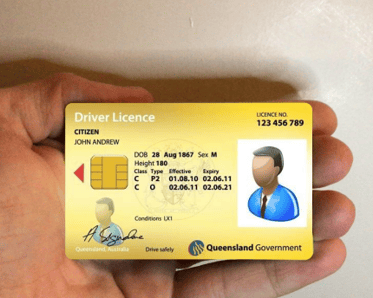
- We recommend either holding the ID in a cupped hand, or placing it on a flat (contrasting) surface before starting the scan. This is especially important when scanning an ID with a transparent section.
- If you can’t clearly read details on the ID document, the scanner won’t be able to read them either.
- Avoid reflections and glare when scanning. If bright spots or security holograms are covering important information, slightly tilt the ID or change the angle of the camera until all details are clearly visible.
Passports
- When scanning a passport, we recommend holding it by the spine to keep all details visible.
- Make sure the MRZ code (the text strip at the bottom of the photo page) is clear — this is what the scanner reads.
Retake Photo
If not all ID document details were captured correctly, simply select the Retake button and try again.