Only users with a Manager role in Checkd can review and approve payouts.
Payouts that require approval will appear on the Dashboard for review.
Payouts can be reviewed either by logging in as a user with the Manager role, or by using the temporary access PIN while a user with the Staff role is logged in. Using the PIN allows a Manager to quickly review and approve payouts without switching accounts.
As part of the review, you are required to check that the payout details are correct, complete the KYC assessment, and ultimately approve or reject the payout.
Jump straight to:
- Checking payout details
- Viewing previous payouts
- Known patron check
- PEP & Sanctions check
- Payout risk assessment
- Approving/rejecting the payout
A Manager can reject a payout at any stage during the Review & Approval process. Please note: rejecting or approving a payout is permanent and cannot be changed.
Checking Payout Details
Before you proceed with the payout, take a moment to make sure all payout details look correct.
At the top of the screen, you’ll see all of the key information about the patron and the payout, including:
- The patron’s personal details.
- The patron’s identity document details.
- The payout amount.
- Ticket information.
- The patron’s bank account details (if EFT has been selected).
Viewing Previous Payouts
Below the KYC assessment section, you’ll see any previous payouts recorded for this patron at your venue, including the risk level that was assigned. This context can be helpful when reviewing the current payout.
Signatures
Managers can view patron and staff signatures directly on a payout within the Needs Manager Review and Finalised Payouts sections, providing full visibility over the entire payout process.
Known Patron Check
Checkd compares the patron’s details (such as name, DOB, etc.) against previous payout records at your venue.
If the system finds similar or matching details, it will prompt you to review the potential matches.
- If any of the potential matches are the same person as the patron, select the record and then select Confirm match.
- If none of the potential matches are the same person as the patron, select Patron is none of these.
The outcome of this review may affect the recommended payout risk level.
Confirming these matches helps link records over time. This improves the ability to identify behavioural patterns and support ongoing Customer Due Diligence (CDD) as part of your AML/CTF obligations.
If no previous payout has been registered for a patron with similar details, select Create new patron.
.png?width=560&height=420&name=IMG_0071%20(1).png)
PEP & Sanctions Check
As part of the payout review, Checkd performs a PEP & Sanctions check. If the patron’s details match any records in the PEP or sanctions databases, you will be asked to review the potential match.
Checkd will display the details of the potential match (and sometimes an image). Review the information provided and confirm whether the potential match is the same as the individual receiving the payout.
- If any of the potential matches are the same person as the patron, select the record and then select Confirm match.
- If none of the potential matches are the same person as the patron, select Patron is none of these.
The outcome of this review may affect the recommended payout risk level.
Payout Risk Assessment
The final step of the payout review includes a payout risk assessment by the manager.
Suggested Risk Level
Based on the Verification of Identity, PEP & Sanctions check results, and any previous recorded payouts, Checkd will suggest a risk level (low, medium, or high) to assist in your final assessment.
Assigned Risk Level
After you have checked that the payout details are correct, and you have completed the KYC assessment, you are required to select the risk level that you deem appropriate for the payout. Optionally add notes or a justification in the text field, and select Confirm.
.png?width=560&height=420&name=IMG_0072%20(1).png)
Approving/Rejecting the Payout
Once you have assigned a risk level, use the Approve or Reject button to complete your review.
.png?width=560&height=420&name=IMG_0073%20(1).png)
Lastly, add your signature to confirm that you have reviewed the details of the payout and performed due diligence before signing off on the payout.
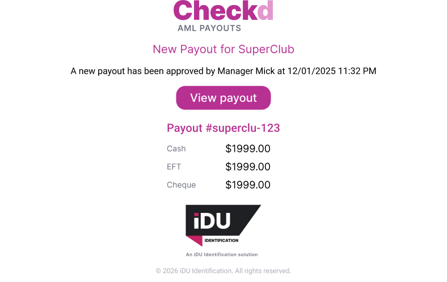
After you have approved the payout, the status of the payout will change from Needs review to Payment pending, and a notification email will be sent to all recipients configured in the Settings menu.